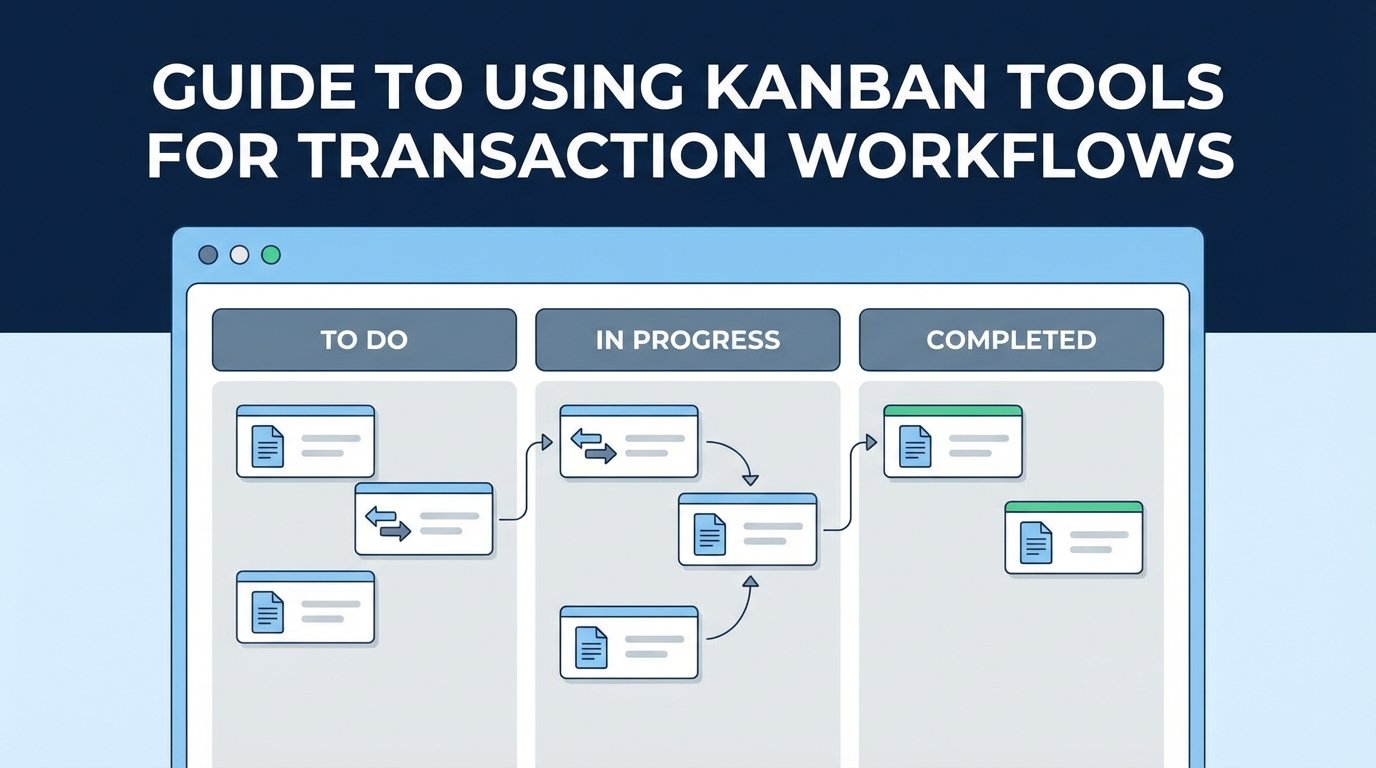
Forget project management. We are talking about using visual boards to track the live state of automated business processes. Most teams default to building a custom dashboard, a wallet-draining exercise that ends in a barely maintained internal tool. A Kanban board, when treated as a state machine front-end, can be forced to do the job for a fraction of the cost.
The goal is not to give someone a card to drag and drop. The goal is to create a visual representation of a system’s state, driven entirely by automation, for the sole purpose of exception handling. If a human has to move a card, the automation has failed.
Step 1: Define the State Machine, Not the Board
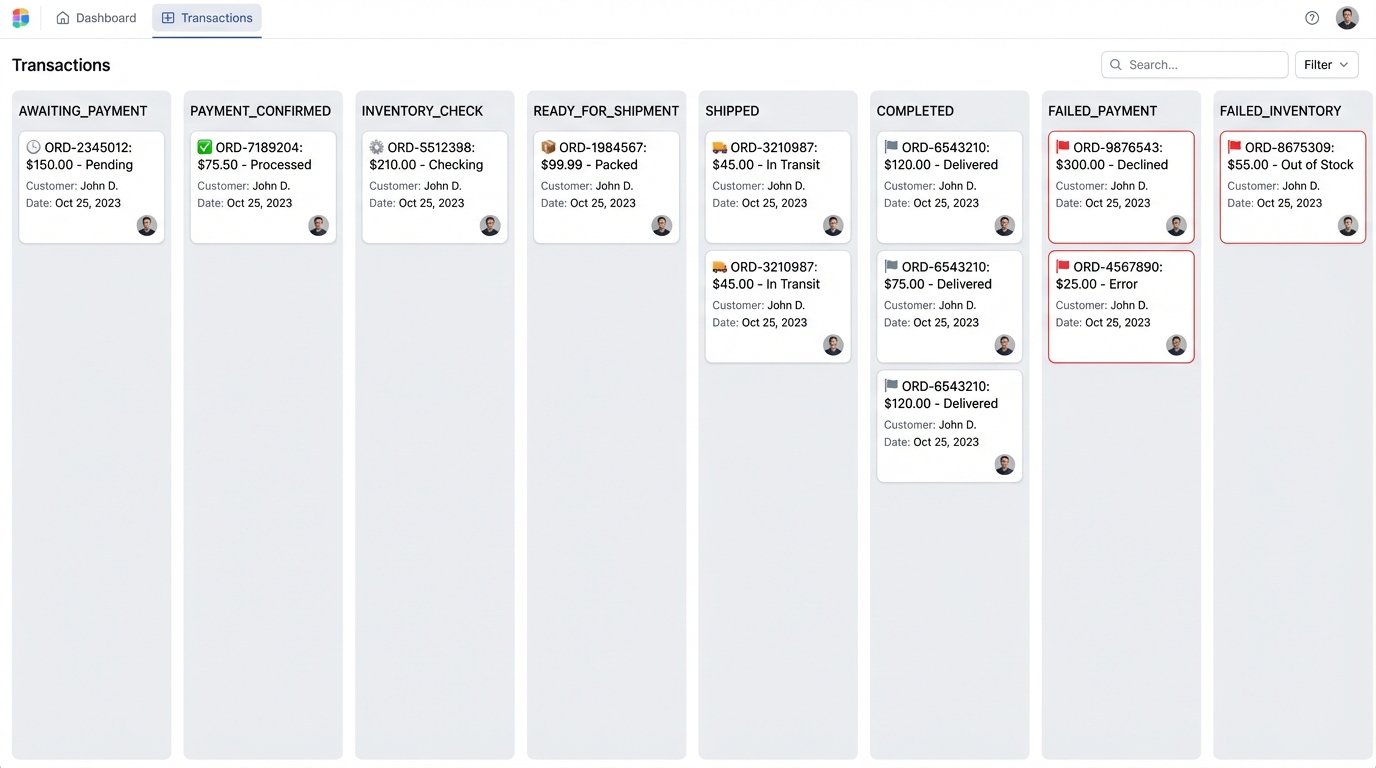
Before you touch a single API or configure a column, you must map the lifecycle of your transaction. If you skip this, you will build a system on top of ambiguity, and it will collapse. For an e-commerce order, the states are non-negotiable and finite.
- AWAITING_PAYMENT: The order is created, but the payment gateway has not confirmed funds.
- PAYMENT_CONFIRMED: The gateway sent a success webhook. The transaction is ready for processing.
- INVENTORY_CHECK: A call is made to the inventory service to reserve the item.
- READY_FOR_SHIPMENT: Inventory is confirmed. The order is pushed to the logistics API.
- SHIPPED: Logistics API confirms pickup with a tracking number.
- COMPLETED: The transaction is finished.
- FAILED_PAYMENT: The payment gateway rejected the charge. This is a terminal state.
- FAILED_INVENTORY: The item is out of stock. This is a terminal state requiring manual intervention.
These states become your Kanban columns. The names must be identical. Any deviation introduces cognitive load and bugs. This is your schema, the foundation for every API call and logic check that follows.
Step 2: Automate Card Creation at the Source
Cards representing transactions must be created by the system that originates the transaction. This is non-negotiable. A new order in the database triggers an event. That event must be consumed by a service whose only job is to create a card on the board. This ensures a one-to-one relationship between a transaction and its visual proxy.
The card’s title should contain the most critical, human-readable identifier. A unique Order ID is mandatory. Forcing all transaction data into the card title is like shoving a firehose through a needle; it’s messy and useless. Use custom fields for the rest of the metadata.
Injecting Metadata via API
Your API call to create the card must be rich with data. Do not settle for just a title. You need to populate custom fields to make the card a useful diagnostic tool. A raw transaction log is for deep dives; the card is for quick triage.
A payload to your Kanban tool’s API might look like this. Note the use of `custom_fields` to store structured data that the UI can display. This prevents operators from having to cross-reference multiple systems just to understand a single failure.
POST /api/v2/cards
Host: kanban-tool.example.com
Authorization: Bearer your_secret_api_key
Content-Type: application/json

{
  "board_id": "board-_trans_flow_prod",
  "column_id": "col_awaiting_payment",
  "title": "Order #ORD-8675309",
  "description": "Customer: John Doe - 2x Widget Pro",
  "custom_fields": {
    "field_transaction_id": "ORD-8675309",
    "field_customer_id": "CUST-1138",
    "field_amount_usd": "99.98",
    "field_creation_ts": "2023-10-27T18:30:00Z",
    "field_source_system": "web-checkout-v3"
  }
}
This structure gives anyone looking at the card immediate context without needing to grep through logs.
Step 3: Drive State Transitions with Webhooks
Dragging and dropping is a failure condition. The board state must reflect the system state automatically. The most direct way to achieve this is with webhooks from the various services involved in the transaction lifecycle. When the payment gateway confirms payment, it should fire a webhook to an endpoint you control. That endpoint’s job is to find the right card and move it.
Your listener endpoint needs to perform three tasks:
1. Ingest and validate the webhook payload. Assume all external input is hostile until proven otherwise.
2. Extract the unique transaction identifier from the payload.
3. Execute an API call to your Kanban tool to move the card from its current column (e.g., `AWAITING_PAYMENT`) to the next (e.g., `PAYMENT_CONFIRMED`).
This creates a closed-loop system where the board is a passive mirror of reality, not a source of truth.

Example Webhook Listener
Here is a stripped-down Flask application in Python that listens for a hypothetical payment gateway webhook. It finds a card by a custom field value and moves it. In a real environment, you would add signature validation, robust error handling, and queuing.
from flask import Flask, request, jsonify
import requests

app = Flask(__name__)

KANBAN_API_URL = "https://kanban-tool.example.com/api/v2"
API_KEY = "your_secret_api_key"
HEADERS = {
    "Authorization": f"Bearer {API_KEY}",
    "Content-Type": "application/json"
}
# Pre-fetched mapping of state names to column IDs
COLUMN_IDS = {
    "PAYMENT_CONFIRMED": "col_payment_confirmed",
    "FAILED_PAYMENT": "col_failed_payment"
}

def find_card_by_transaction_id(transaction_id):
    # This is a simplified search. A real implementation needs proper indexing.
    # The API must support querying custom fields directly. If it doesn't, the tool is wrong for the job.
    search_params = {'query': f'custom_fields.field_transaction_id:"{transaction_id}"'}
    response = requests.get(f"{KANBAN_API_URL}/cards", headers=HEADERS, params=search_params)
    response.raise_for_status()
    cards = response.json()
    return cards[0] if cards else None

def move_card(card_id, target_column_id):
    payload = {"column_id": target_column_id}
    response = requests.patch(f"{KANBAN_API_URL}/cards/{card_id}", headers=HEADERS, json=payload)
    response.raise_for_status()

@app.route('/webhooks/payment', methods=['POST'])
def handle_payment_webhook():
    data = request.json
    transaction_id = data.get('order_id')
    status = data.get('status')

    if not transaction_id or not status:
        return jsonify({"error": "Missing order_id or status"}), 400

    card = find_card_by_transaction_id(transaction_id)
    if not card:
        return jsonify({"error": f"Card for transaction {transaction_id} not found"}), 404

    if status == 'succeeded':
        target_column = COLUMN_IDS["PAYMENT_CONFIRMED"]
    elif status == 'failed':
        target_column = COLUMN_IDS["FAILED_PAYMENT"]
    else:
        # Ignore other statuses
        return jsonify({"message": "Status ignored"}), 200

    move_card(card['id'], target_column)
    return jsonify({"message": f"Card {card['id']} moved"}), 200

if __name__ == '__main__':
    app.run(port=5000)
This script is the mechanical heart of the system. It bridges an external event to a state change on your board.
Step 4: Architect for Failure and High Volume
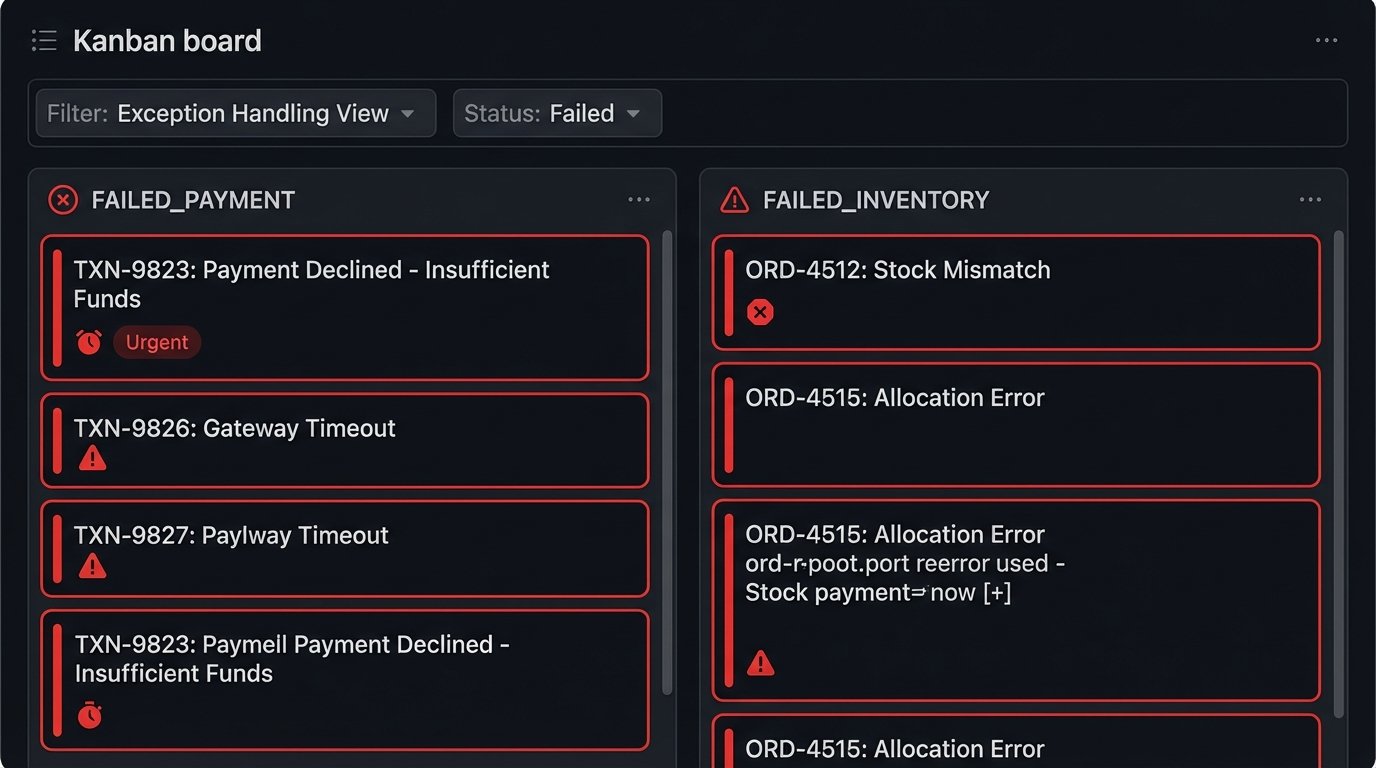
Success is boring. The happy path transactions should flow across the board and into the “Completed” column without anyone noticing. The real value of this system is in visualizing the failures. The `FAILED_PAYMENT` and `FAILED_INVENTORY` columns are your action queues. They must trigger alerts. A card landing in a failure column is an exception that requires investigation.
This leads to the primary scaling problem: API rate limits and UI performance. With thousands of transactions per hour, your board will become unusable. Most Kanban tools are built for human-scale project management, not high-frequency machine-to-machine updates. Their UIs will become sluggish and eventually crash if you try to render 10,000 cards in one view.
Do not treat the UI as your primary interface. It is a tool for viewing exceptions.
1. Aggressive Archiving: Cards in the `COMPLETED` column should be archived automatically after a short period, like 24 hours. They have served their purpose. A script should run periodically to clean this column out.
2. Batch API Calls: If your tool’s API supports it, batch your updates. Sending 100 card movements in one HTTP request is far better than 100 individual requests. This helps you stay under API rate limits.
3. Use Filtered Views: The default view of the board is irrelevant. Create filtered views or separate boards for failure states. The operations team should only ever look at a view showing the `FAILED_*` columns. They do not care about the thousands of successful transactions.
If you ignore these realities, your helpful diagnostic tool will quickly become another source of production noise and performance bottlenecks.
Step 5: Implement Reconciliation Logic
Never trust the board completely. It is a secondary system and is subject to network failures, API errors, and bugs in your own automation logic. You must have a reconciliation process that compares the state on the board against the primary source of truth, which is likely your production database.
A nightly or hourly job should execute the following logic:
1. Query the database for all transactions in a non-terminal state (e.g., status is `AWAITING_PAYMENT`).
2. For each of these transactions, query the Kanban tool’s API to ensure a corresponding card exists in the correct column.
3. If a card is missing, create it.
4. If a card is in the wrong column, move it and log an alert. This indicates a potential webhook failure or a bug in a processor.
5. Query the Kanban board for cards in active columns that do not have a corresponding active transaction in the database. These are orphan cards and should be investigated or archived.
This reconciliation process acts as a self-healing mechanism. It detects drift between the source of truth and its visual representation, preventing silent failures from going unnoticed for days. Assuming the board is always correct is a rookie mistake.