Most real estate data workflows are a mess of disconnected platforms. Your MLS, CRM, social media accounts, and lead sources refuse to talk to each other without expensive, dedicated integration software. IFTTT is not that software. It is a simple, often crude, tool for connecting two services in a linear fashion. Think of it as digital duct tape, not a welded connection.
It is designed for trivial tasks. Forget multi-step logic, conditional routing, or robust error handling. You get one trigger and one action. If you need to chain multiple operations or transform data, you are using the wrong tool. But for basic, repetitive tasks that require no intelligence, IFTTT can stop some of the bleeding.
Prerequisites: The Groundwork
Before you even open the IFTTT dashboard, you need authenticated access and a clear understanding of your data sources. Fumbling with permissions mid-build is a waste of time. Get your keys to the kingdom first.
- Authenticated Accounts: You need login credentials for every service you intend to connect. This includes your business Facebook Page, Twitter profile, Google account (for Sheets and Calendar), and any other target system.
- A Stable Trigger Source: An automation is only as reliable as its trigger. For real estate, the most common sources are RSS feeds from your MLS or specific email notifications from lead providers like Zillow. A trigger that changes its format will break your automation silently.
- An Ingestion Point: You need a destination for your data. This could be a specific Google Sheet, a Trello board, or an email address connected to your CRM that parses incoming messages to create contacts.
Core Anatomy of an IFTTT Applet
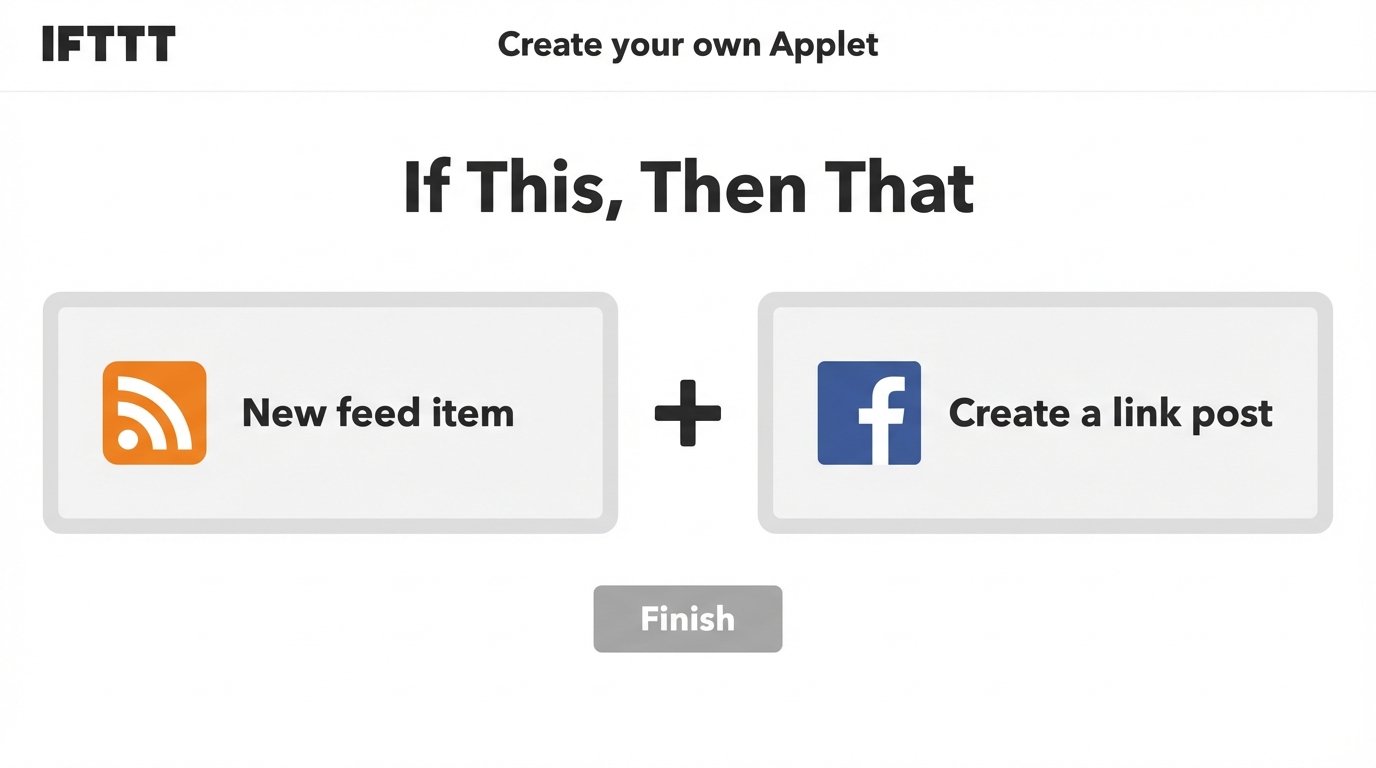
IFTTT operates on a single principle: If This, Then That. Each automation, called an “Applet,” is comprised of exactly two components. Understanding this limitation is fundamental.
The Trigger (the “If This”) is the event that initiates the workflow. This could be a new item appearing in an RSS feed, a new email matching a search query in your Gmail inbox, or a new file being added to a Dropbox folder.
The Action (the “Then That”) is the resulting operation performed in a second service. This could be creating a post on a Facebook Page, adding a row to a Google Sheet, or creating a new calendar event.
There is no “And If,” “Or Else,” or “Then Do This Next.” The data flow is a straight line. IFTTT checks for the trigger event on a polling interval. It is not instantaneous and can feel sluggish, with delays ranging from a few minutes to over an hour.
Use Case 1: Auto-Posting New Listings to Social Media via RSS
Manually posting every new listing to social media is a low-value, repetitive task. We can automate the basic announcement by monitoring an MLS-generated RSS feed. This assumes your MLS provides a stable feed for your new listings; many do, but finding the URL can require digging through their documentation or agent portal.
Trigger Configuration: RSS Feed
- Inside IFTTT, select “Create.” For the “If This” condition, search for and select the “RSS Feed” service.
- Choose the “New feed item” trigger. This will prompt you for a feed URL.
- Paste the URL for your specific MLS feed. This is the most critical step. A bad URL means the trigger will never fire. After pasting the URL, create the trigger.
Action Setup: Facebook Page Post
- For the “Then That” condition, search for the “Facebook Pages” service and select it. You will need to authenticate your Facebook account and grant IFTTT permission to manage the specific page you want to post to.
- Select the “Create a link post” action. This action type is preferable to a simple text post because it generates a preview card from the listing URL.
- Now you map the data. IFTTT presents the data from the RSS trigger as “ingredients.” You will see options like `EntryTitle`, `EntryUrl`, and `EntryContent`. Map `EntryUrl` to the “Link URL” field. For the “Message” field, you can combine static text with ingredients, for example: “New Listing: `{{EntryTitle}}` `{{EntryUrl}}`”.
- Finalize the action by clicking “Create action” and then “Finish.”
Validation and Reality Check
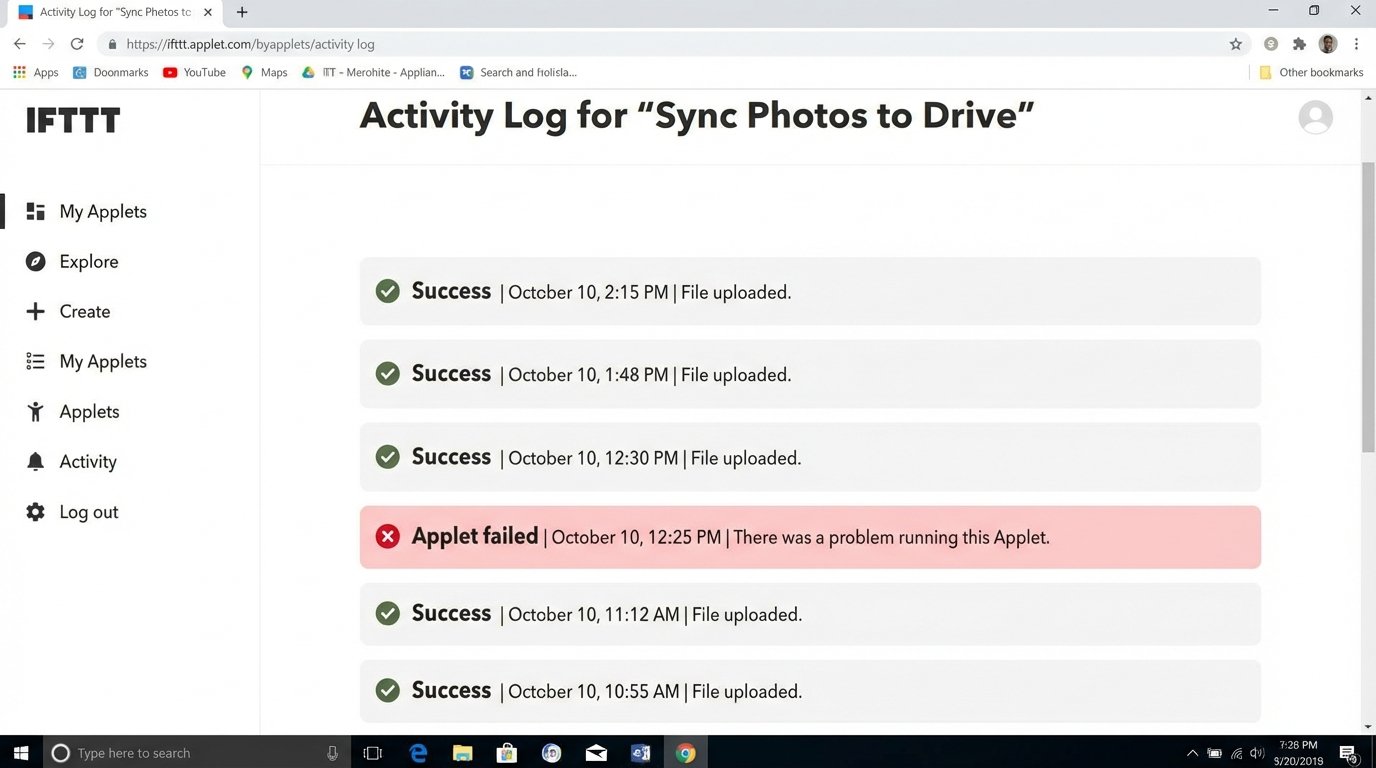
To validate, add a new listing that appears in the RSS feed. Then, wait. Check the activity log within your IFTTT Applet to see if it ran. If it ran successfully, check your Facebook Page to see the post. If it failed, the log will offer a cryptic, often useless, error message. The most common failure is a broken RSS feed or expired authentication tokens for your social account.
This automation is crude. You get no control over the image selected for the link preview and no ability to add hashtags based on property features. It is a blunt instrument for basic awareness.
Use Case 2: Funneling Zillow Leads into a Google Sheet
Lead emails from portals like Zillow arrive in your inbox but are useless there. The goal is to get lead contact information into a structured format for follow-up. Since Zillow lacks a direct IFTTT integration, we are forced to use a fragile email parsing method.
Trigger Configuration: Gmail Search
This entire workflow depends on Zillow sending a consistently formatted email. If they change their subject line or sender address, the automation breaks.
- In Gmail, create a unique label, for example, “ZillowLeads.” Set up a filter that automatically applies this label to all incoming emails from Zillow. A good filter might be `from:(leads@zillow.com)`. This isolates the trigger source.
- In IFTTT, create a new Applet. For the “If This,” select the “Gmail” service.
- Choose the “New email in label” trigger. Select the “ZillowLeads” label you created. This ensures the Applet only fires for the correct emails, not your entire inbox.
Action Setup: Add Row to Google Sheets
- For the “Then That,” select the “Google Sheets” service.
- Choose the “Add row to spreadsheet” action.
- You will be prompted to provide a spreadsheet name, and a formatted row. The default format uses three pipe characters `|||` to separate columns.
- Here you map the ingredients from the Gmail trigger. Your row format might look like this: `{{Subject}} ||| {{FromAddress}} ||| {{BodyPlain}} ||| {{ReceivedAt}}`.
- Specify the path where the Google Sheet should be saved in your Google Drive.
The result is a spreadsheet that logs every new lead email. The major flaw is immediately obvious: the lead’s name, phone number, and message are all trapped inside the `BodyPlain` ingredient in a single, messy text block. IFTTT provides no tools to parse this data into separate columns. It is a raw data dump, not a clean lead list.

The Webhook Bridge: A Slightly More Capable Approach
If your CRM or external system can accept a webhook, you can bypass Google Sheets and inject the raw data directly. This does not solve the parsing problem; it just moves the problem to the receiving system. The action service to use here is “Webhooks.”
Action Setup: Webhooks
Instead of Google Sheets, select the “Webhooks” service and the “Make a web request” action. This lets you structure the data as a JSON payload, which is a more standard format for system-to-system communication.
- URL: The endpoint URL provided by your CRM or custom script.
- Method: `POST`.
- Content Type: `application/json`.
- Body: You construct the JSON payload here using ingredients.
The body is where you define the data structure. It looks something like this:
{
  "source": "IFTTT_Zillow_Lead",
  "lead_email_subject": "{{Subject}}",
  "contact_address": "{{FromAddress}}",
  "timestamp": "{{ReceivedAt}}",
  "raw_email_body": "{{BodyPlain}}"
}
This is effectively shoving a firehose through a needle. You are sending a block of unparsed text and forcing the downstream system to have the intelligence to tear it apart and identify the name, phone number, and property of interest. This approach is only useful if you control the receiving endpoint and can build a robust parser there.
The Inevitable Failure Points of IFTTT
Using IFTTT for anything business-critical is a poor decision. Its simplicity is its primary weakness. The platform is brittle and offers zero observability into its internal state.
Polling Delays and Inconsistency
IFTTT does not provide real-time execution. Its polling architecture means there can be a significant, unpredictable delay between a trigger event occurring and the action firing. If you need a lead to be in your CRM within seconds, this tool is not for you.
Brittle, Unstable Triggers
Any automation built on email parsing or screen scraping is fundamentally unstable. When a company like Zillow updates its email notification template, it will break every IFTTT Applet that depends on it. The trigger will fail to match, and your workflow will stop dead with no warning. An RSS feed URL changing has the same effect.
Zero Error Handling or Logic
If an action fails, the Applet simply stops. There is no built-in retry mechanism. There is no dead-letter queue to hold failed events for later processing. The data is lost. Furthermore, you cannot build conditional logic. You cannot check if a lead already exists in your CRM before attempting to create it, leading to data duplication.
When to Abandon IFTTT
IFTTT is a tool for hobbyists and for connecting non-essential services. It is a good way to learn the basic concepts of triggers and actions. The moment your automation requires any of the following, it is time to migrate to a professional-grade platform like Zapier, Make, or a custom-coded solution.
- Multi-Step Workflows: If you need to perform more than one action from a single trigger (e.g., add lead to a sheet, then send a notification, then create a task).
- Data Transformation: If you need to split a full name into first and last names, format a date, or extract a phone number from a block of text.
- Conditional Logic: If the workflow needs to perform different actions based on the incoming data (e.g., route leads to different agents based on ZIP code).
- Reliability and Speed: If the data is time-sensitive or mission-critical and you need robust error handling and near-instant execution.
Use it for what it is: a simple connector for simple tasks. Pushing it beyond that point will only lead to silent failures and lost data when you can least afford it.