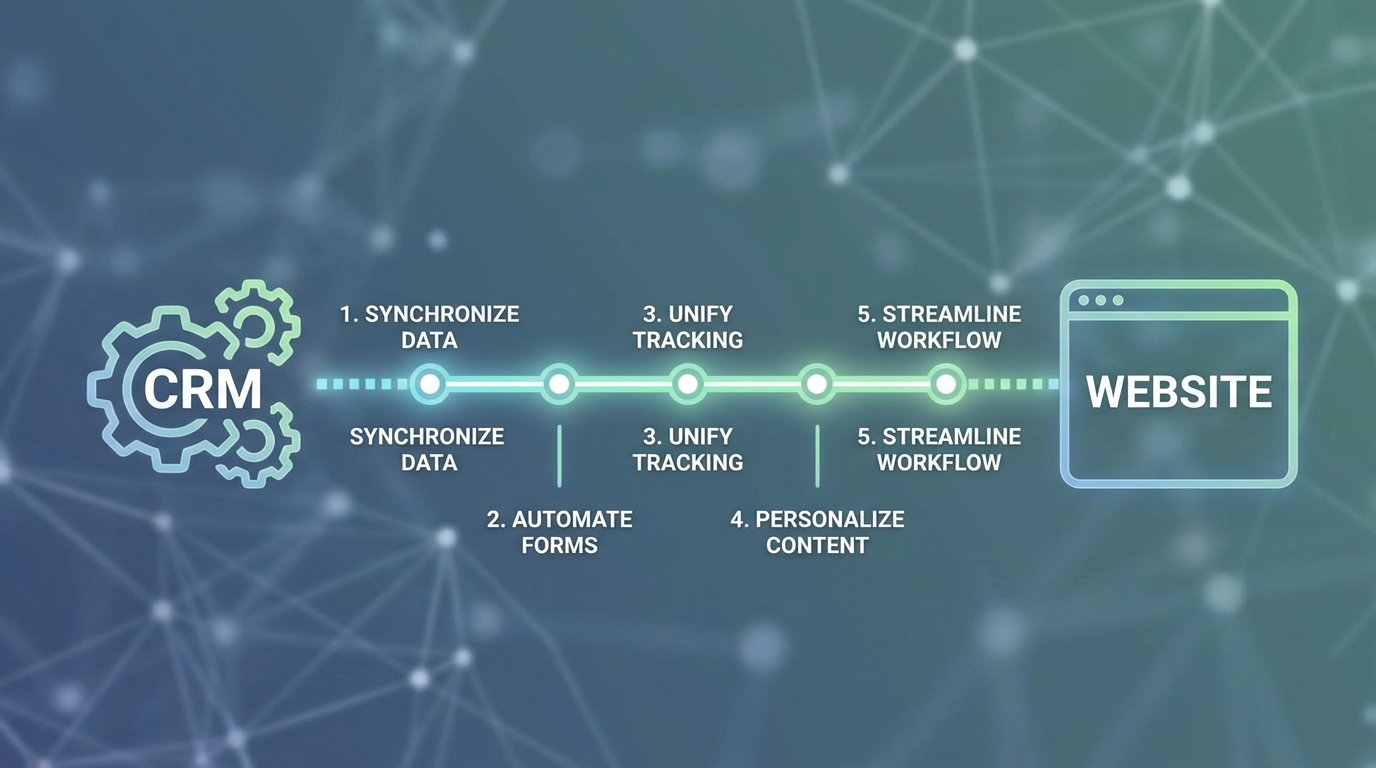
Your website generates leads. Your CRM manages them. The connection between the two is often a duct-taped mess of vendor-supplied plugins and brittle Web-to-Lead forms that fail silently. When that link breaks, revenue stops. These are not best practices for beginners; they are survival tactics learned from production outages and polluted contact databases. We are not here to “streamline workflows.” We are here to build a data pipeline that doesn’t shatter when a marketer changes a form field.
Forget the drag-and-drop integration tools that promise a seamless connection. That promise is a lie. True integration requires defensive coding, an assumption of failure, and a healthy distrust of both your website’s front end and the CRM’s API documentation. The goal is not just to get data from point A to point B. The goal is to guarantee data integrity, handle network chaos, and build a system that you don’t have to manually debug on a weekend.
1. Gut the Native Form Handlers and Build an Intermediary
Relying on the default form handlers provided by Salesforce, HubSpot, or other major CRMs is the most common and damaging mistake. These tools are built for simplicity, not resilience. They function as a black box, offering minimal validation, no retry logic, and zero visibility when a submission fails. A user enters a badly formatted email, the submission vanishes into the ether, and a potential lead is lost forever without a single error log.
This is unacceptable in a production environment.
Decouple Your Website from Your CRM
The correct architecture forces a separation between the client-side form submission and the CRM API call. Your website form should not POST directly to the CRM. Instead, it should send its payload to an intermediary endpoint that you control. This endpoint can be a serverless function (AWS Lambda, Google Cloud Function) or a simple API endpoint on a server you manage. This single change gives you absolute control over the entire data transfer process.
This intermediary is your gatekeeper. It receives the raw, untrusted data from the website. It then cleans, validates, and transforms that data before attempting to inject it into the CRM. If the CRM API is down or rejects the payload, your intermediary can queue the request and retry it later. The website gets an immediate success response, the user experience is unaffected, and you handle the failure asynchronously.
You’ve just moved the point of failure from the user’s browser to a controlled server environment you can monitor.
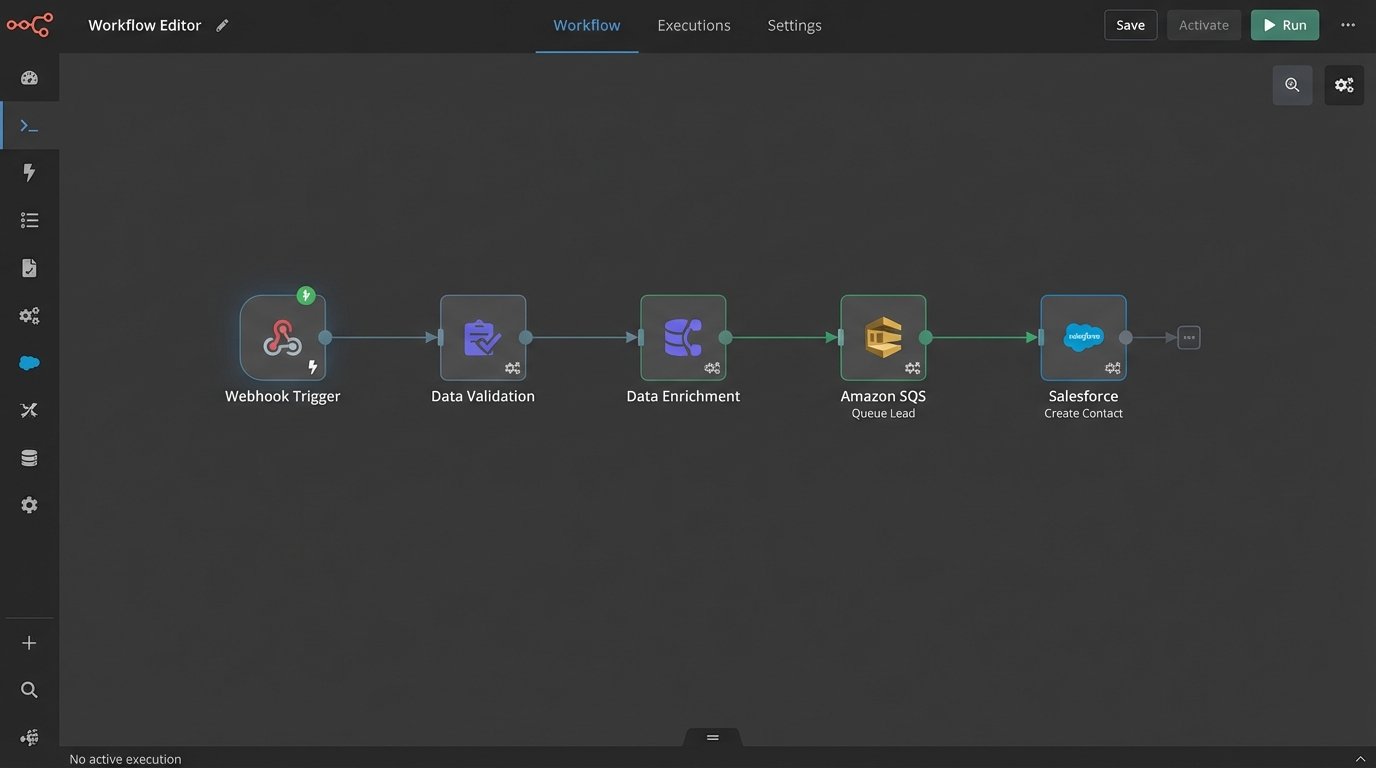
Benefits of the Intermediary Model
- Error Handling: You can implement custom retry logic with exponential backoff for when the CRM API is temporarily unavailable. The native handler just fails and moves on.
- Data Validation: You can enforce server-side validation rules that are far more secure than anything running in the browser. You can logic-check for fake email addresses or strip out garbage characters before the data ever touches your CRM.
- Data Enrichment: Your intermediary can enrich the data before sending it to the CRM. For example, you could use a service like Clearbit to add company size and industry based on an email domain, or geolocate a user from their IP address.
- Queuing: During a traffic spike (like after a marketing campaign launch), you can buffer incoming submissions in a queue (like Amazon SQS or RabbitMQ). This prevents you from hammering the CRM’s API and hitting rate limits. Your system processes the leads at a steady, controlled pace.
Building this layer is non-negotiable for any serious integration. The out-of-the-box connectors are a toy, not a tool.
2. Enforce Idempotency to Prevent Data Pollution
Users double-click buttons. Network connections stutter, causing browser retries. Front-end scripts have bugs. The result is duplicate form submissions, which lead to duplicate contacts in your CRM. This pollutes your database, confuses your sales team, and makes reporting a nightmare. An idempotent API endpoint ensures that receiving the same request multiple times has the same effect as receiving it just once.
Your intermediary endpoint must be designed to be idempotent.
The Idempotency Key Strategy
The most straightforward method is to use an idempotency key. The process is simple:
- Generate on Client: When the web form is loaded, generate a unique identifier (a UUID is a good choice) and store it in a hidden form field.
- Send with Payload: When the user submits the form, include this idempotency key in the JSON payload sent to your intermediary endpoint.
- Check on Server: Your intermediary’s first action upon receiving a request is to check for the presence of the idempotency key. It checks a cache (like Redis) or a database table to see if it has ever processed this key before.
If the key has been seen, the server immediately returns a success response without processing the request again. If the key is new, the server processes the payload, stores the key to prevent future duplicates, and then proceeds with the CRM API call. This logic-check prevents any duplicate data from ever reaching the CRM.
Here is a basic block of pseudo-code illustrating the server-side logic:
function handleFormSubmission(request) {

    const idempotencyKey = request.headers['Idempotency-Key'];

    const payload = request.body;
// Check if we've seen this key before
if (cache.get(idempotencyKey)) {
// If yes, it's a duplicate. Return success without processing.
return new Response('Success', { status: 200 });
}
// If no, it's a new request.
// Store the key with a TTL to prevent the cache from growing indefinitely.
cache.set(idempotencyKey, 'processed', { ttl: 24 * 60 * 60 });
// Now, process the payload and send to the CRM
const crmResponse = await crmApi.createContact(payload);
if (crmResponse.isSuccessful()) {
return new Response('Lead Created', { status: 201 });
} else {
// Important: If the CRM call fails, we might need to remove the key
// from the cache to allow for a legitimate retry.
// This depends on your specific retry strategy.
cache.delete(idempotencyKey);
return new Response('CRM Error', { status: 502 });
}
}
Fixing duplicate contacts after they’ve been created is a soul-crushing manual task. Preventing them from being created is a simple architectural decision.
3. Map and Transform Data Defensively
Never trust the data coming from your website. Also, never trust that the CRM’s API schema will remain unchanged. A solid integration treats the intermediary as a strict transformation layer, not a dumb pipe. It is responsible for converting the chaotic, unpredictable data from the form into the rigid, structured format the CRM API expects.
This is where most integrations break. A marketer renames a field in the website CMS from “company_name” to “company,” and the integration starts failing because your code was hardcoded to look for “company_name.”
The Mapping and Normalization Engine
Your intermediary should use a configuration object or file to map incoming form field names to the CRM’s required property names. This decouples your integration logic from the front-end code. If a form field name changes, you update a single line in a configuration file instead of redeploying code.
Beyond simple mapping, this layer must perform normalization:
- Trimming whitespace: Users accidentally enter spaces. `trim()` every string value.
- Lowercasing emails: `John.Doe@Example.com` and `john.doe@example.com` are the same inbox. Force all email addresses to lowercase to prevent duplicate contacts.
- Standardizing values: A form might have a “Country” field. The CRM might require a two-letter ISO 3166 code. Your intermediary is responsible for translating “United States” to “US”.
- Stripping unknown fields: Your form might contain fields the CRM doesn’t care about, like CSRF tokens or honeypot fields. Your code should explicitly strip out any properties not defined in your mapping configuration. This prevents errors if the CRM API rejects payloads with unexpected properties.
Passing raw data from a public website directly to a CRM API is like shoving a firehose through a needle. You have to control the pressure and shape the flow, or something will burst.
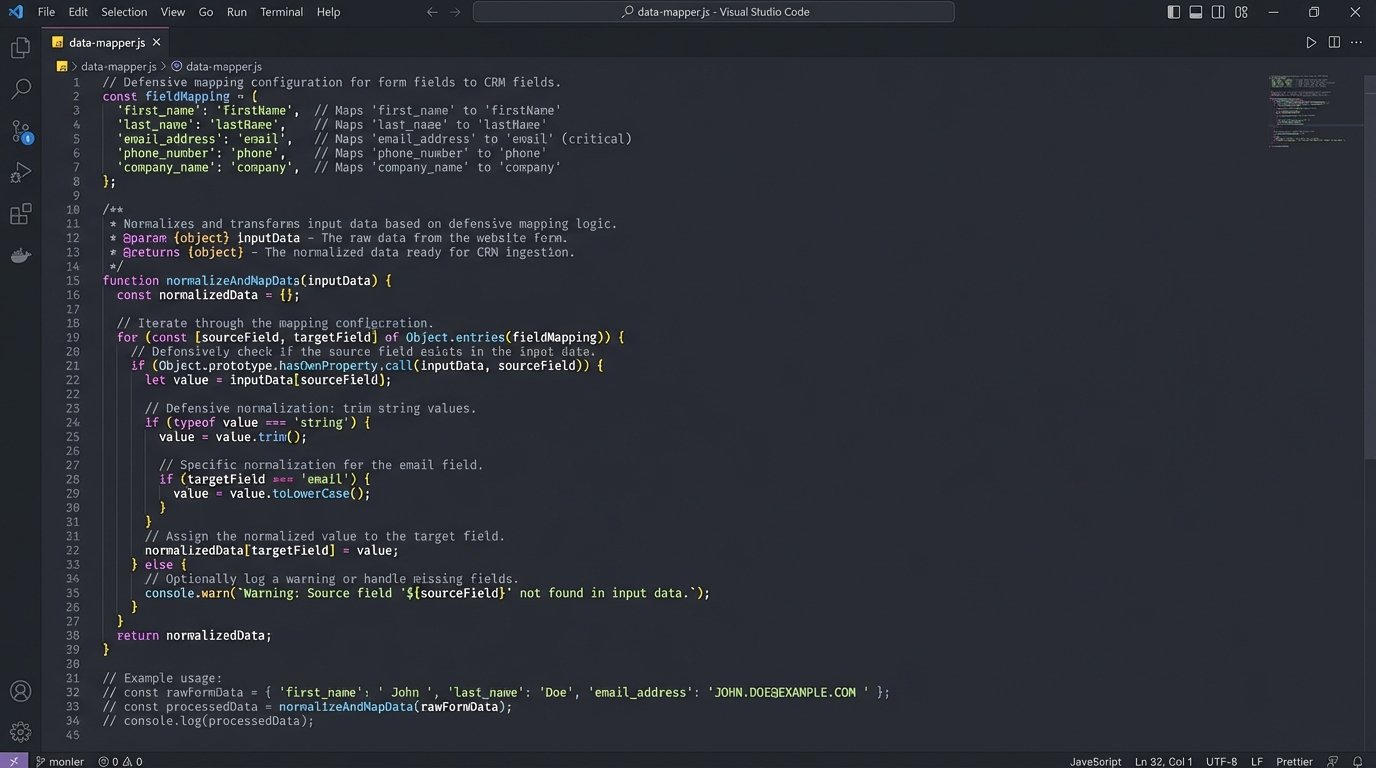
Defensive mapping protects your system from both upstream (website) and downstream (CRM) changes. It is the core of a maintainable integration.
4. Isolate Credentials and Actively Manage API Rate Limits
API credentials should never, under any circumstances, live in your website’s front-end code. Yet, many simple integrations encourage this by providing JavaScript snippets that include API keys. This is a massive security vulnerability. A malicious actor can easily extract those keys and gain direct access to your CRM API.
The second sin is ignoring API rate limits. Every CRM API enforces a limit on how many calls you can make in a given time window. A successful marketing campaign can generate a flood of submissions that blows past this limit, causing subsequent submissions to be rejected. Your integration must anticipate and manage this.
Centralize Security and Throttle Your Own Traffic
The intermediary architecture solves both problems. API credentials for the CRM are stored securely on the server side (e.g., using AWS Secrets Manager, Azure Key Vault, or environment variables). The website never sees them. It only communicates with your intermediary, which can be protected by its own authentication mechanism if needed.
To handle rate limits, you combine the intermediary with a message queue. When a submission comes in, the intermediary doesn’t call the CRM API immediately. Instead, it places the validated payload into a queue (like Amazon SQS). A separate pool of workers (which could be another serverless function) pulls messages from this queue at a controlled rate. You can configure these workers to process, for example, a maximum of 10 leads per second, ensuring you always stay well below the CRM’s API limit.
This queuing model transforms unpredictable traffic spikes into a steady, manageable stream of API calls. It makes your system resilient to sudden bursts of popularity. The CRM API sees a consistent flow, and you never have to worry about being throttled.
The API doesn’t care about your marketing success; it will cut you off without warning.
5. Implement Granular, Actionable Monitoring
If you don’t have logs, you don’t have an integration; you have a hypothesis. The worst kind of failure is a silent one. Leads stop flowing into the CRM, and no one notices for days until the sales team complains that their pipeline is empty. By then, the damage is done. You must have real-time visibility into the health of your integration pipeline.
The default CRM tools offer nothing here. You need to build your own monitoring.
Log Everything, Alert on Anomalies
Because you built an intermediary, you have a central point to inject logging. At every critical step, you should output a structured log (JSON is ideal) to a centralized logging service (like Datadog, New Relic, or AWS CloudWatch Logs). A useful log entry should contain:
- A timestamp.
- The idempotency key for the request.
- The stage of the process (e.g., `received`, `validated`, `crm_api_call`, `success`, `failure`).
- The full error message and stack trace if a failure occurred.
- The response body from the CRM API, especially for errors.
With structured logs, you can build dashboards to visualize the integration’s health. You can track the number of successful submissions versus errors over time. More importantly, you can create automated alerts.
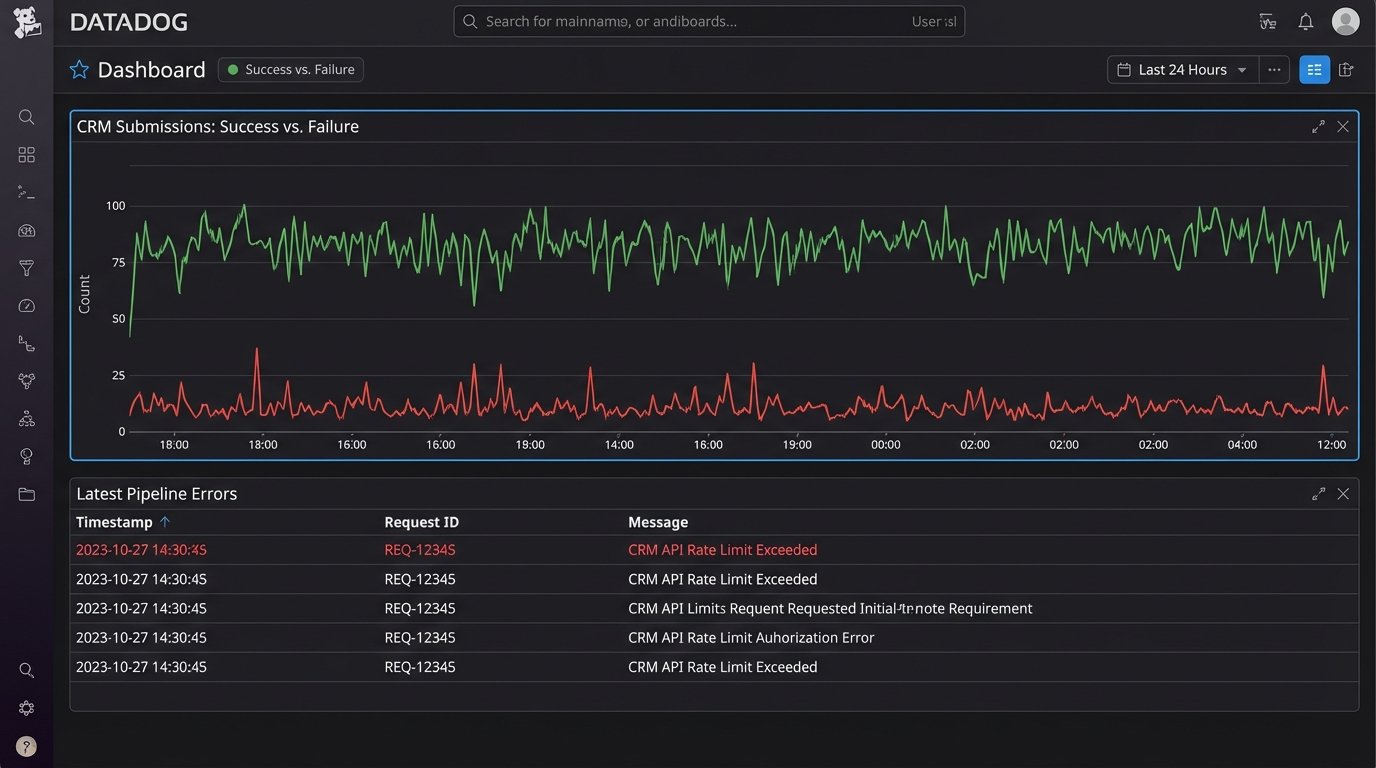
Key Alerts to Configure
- High Error Rate: Alert if the percentage of failed submissions exceeds a certain threshold (e.g., 5%) over a 10-minute window. This could indicate a CRM outage or a bad deployment.
- Zero Successes: Alert if there have been zero successful submissions in the last hour. This is a critical red flag indicating a complete failure of the pipeline.
- Specific Error Messages: Create alerts for specific, critical API error messages from the CRM, such as “Invalid Credentials” or “API Rate Limit Exceeded.”
Monitoring isn’t a feature; it’s a requirement. Without it, you are flying blind and waiting for a crash.