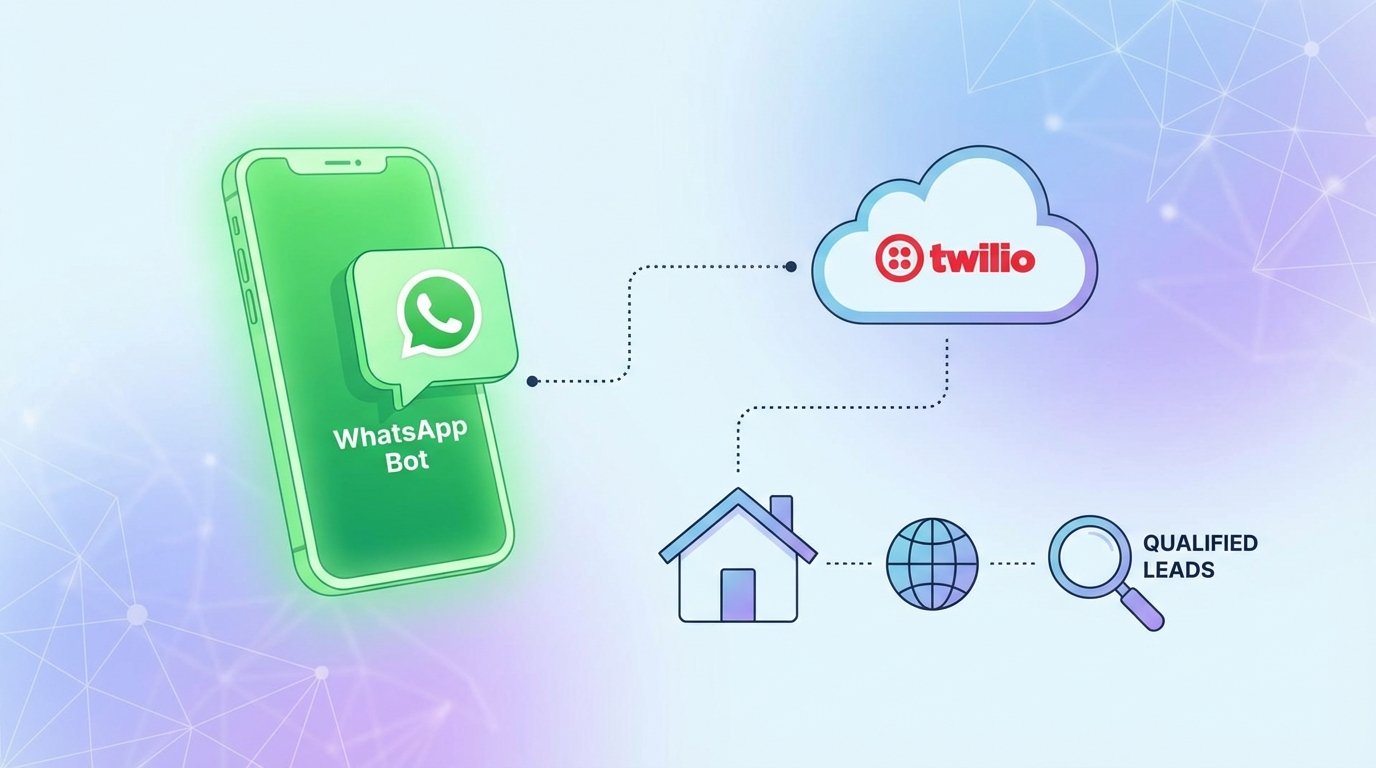
International leads are a double-edged sword. They promise high-value deals but arrive at 3 AM, respond in different languages, and have a flake rate that ruins your metrics. Relying on a human sales team to provide instant, 24/7 qualification across time zones is a recipe for burnout and lost capital. The initial contact doesn’t require a human touch. It requires speed and data collection.
We’re going to build a low-code qualification engine using Twilio Studio. This isn’t a theoretical exercise. This is the architecture to filter out the noise so your brokers only talk to people who have a budget and a pulse. Forget marketing fluff about engagement. This is about ruthless efficiency.
The Stack and the Wallet
Before you get started, let’s talk prerequisites. This setup is not free. You need a paid Twilio account with a phone number enabled for the WhatsApp Business API. The approval process for that API can be a bureaucratic slog, so start it now. Meta wants to verify your business, and they don’t move at startup speed.
The primary tool is Twilio Studio, a visual workflow builder. Think of it as a state machine for conversations. It’s fast for prototyping but has logical limits. For anything beyond basic text matching, you’ll need Twilio Functions, which are serverless Node.js snippets. Every function invocation and message segment costs money. Keep your logic tight or watch the bill climb.
Initial Configuration: The Entry Point
Your bot’s entire existence begins with a trigger. In Twilio Studio, you create a new Flow and select the “Start from scratch” option. The trigger will be the “Incoming Message” widget. This is the front door. You link your WhatsApp-enabled Twilio number to this specific Studio Flow in the phone number’s configuration panel. When a message hits that number, this flow executes.
Do not skip this step. If you don’t wire the number to the flow, your messages go into a black hole.
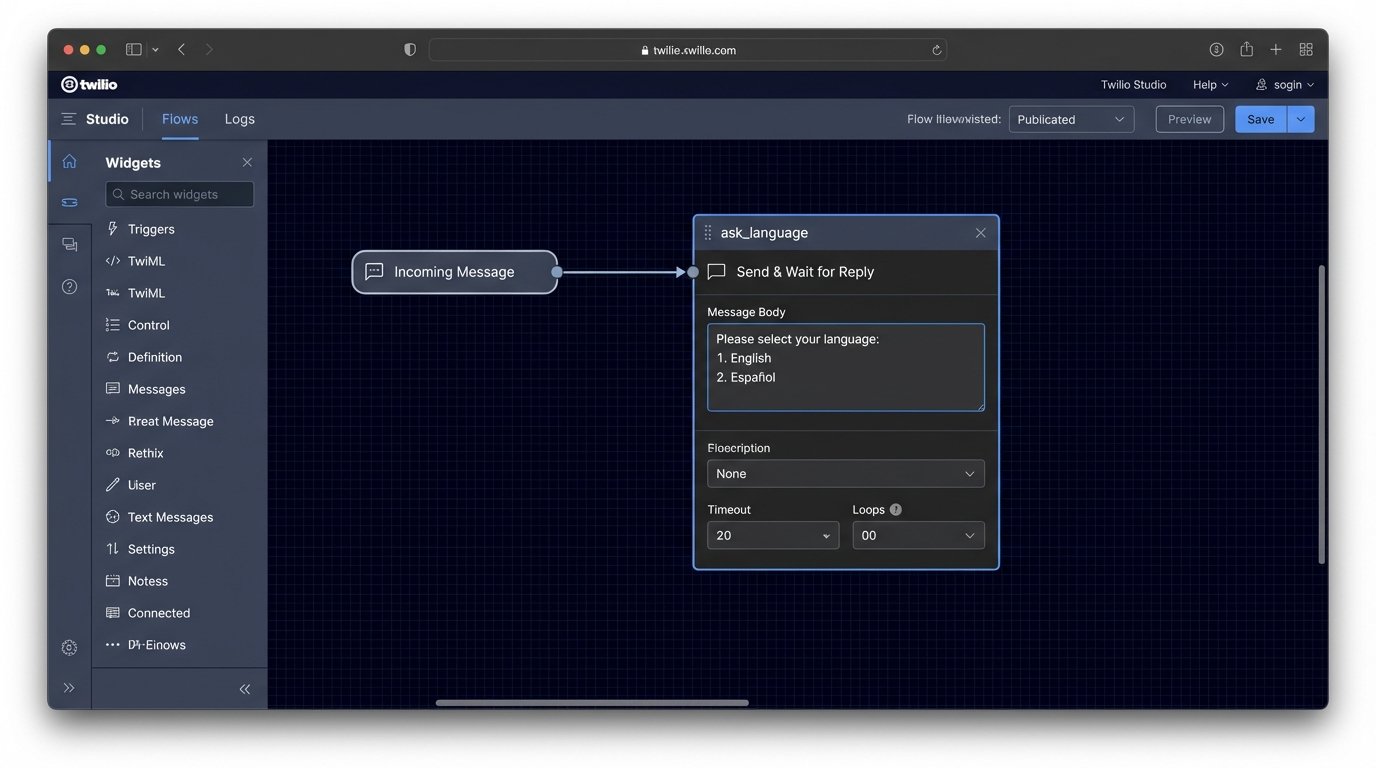
The first interaction should immediately address the international problem: language. Your first widget after the trigger should be a “Send & Wait for Reply” that asks the user to select their language. Offer numbered options. This forces a structured input you can easily logic-check in the next step.
Trying to parse “I’d like to speak English” versus “inglés, por favor” with regex is a fool’s errand. Force the user down a clean, predictable path with a menu.
Building the Qualification Funnel
The goal is to extract four critical data points before a human ever sees the lead: budget, property type, purchase timeline, and if they’re already working with another agent. Each question is a separate “Send & Wait for Reply” widget followed by a “Split Based On…” widget to direct the flow.
Step 1: The Budget Question
After the language selection, you route the user to the first real question. Present the budget as a clear, multi-choice list. This is not the time for open-ended questions. An open field invites unstructured garbage like “around 500k” or “7 figures.”
- 1. Under $500,000 USD
- 2. $500,000 – $1,000,000 USD
- 3. $1,000,000 – $2,500,000 USD
- 4. Over $2,500,000 USD
The subsequent “Split Based On…” widget will check the user’s reply. If `{{widgets.ask_budget.inbound.Body}}` contains “1”, you move them down the “Under $500k” path. This path might lead to a polite message saying you’ll have a junior agent contact them, effectively segmenting the lead pool from the start.
Step 2: Property Type
Qualified budgets move to the next question. You repeat the pattern: present a menu, wait for a reply, and split the logic. This time, you ask for the desired property type. Again, use a numbered list to avoid ambiguity.
- 1. Condo / Apartment
- 2. Single Family Home / Villa
- 3. Land / Lot
This data point is crucial for routing. A lead looking for a beachfront lot should not go to your condo specialist. The bot’s job is to perform this initial routing, saving your team from an internal discovery call.
Data Sanitation with Twilio Functions
Twilio Studio is great for conversational flow, but it’s terrible at data manipulation. Users will inevitably ignore your instructions and type “2 million dollars” instead of “3”. You need a way to clean this input before you pass it to a CRM. This is where you escape the visual builder and write some code.
A Twilio Function is a small island of Node.js logic you can call from your Studio flow using the “Run Function” widget. We can write a simple function to strip non-numeric characters from a user’s budget input if we dare to ask an open question, or to standardize inputs.
Here is a basic sanitation function. It takes the raw input and attempts to pull a clean number from it. This prevents a `_500k!!_` entry from breaking your CRM integration.
exports.handler = function(context, event, callback) {

    const rawInput = event.userInput || '';

    const cleanedInput = rawInput.replace(/[^0-9]/g, '');
const response = new Twilio.Response();
response.appendHeader('Content-Type', 'application/json');
response.setBody({ sanitized: cleanedInput });
return callback(null, response);
};
This function isn’t magic. It just hammers the input string, removing anything that isn’t a digit. It’s a blunt instrument, but it’s better than passing raw, dirty data downstream.
CRM Integration: The Webhook Handover
Once you have collected and cleaned the lead’s data, it’s useless if it just sits in Twilio’s logs. The final step of a successful qualification is to push this data into your CRM. Most CRMs, like Salesforce or HubSpot, provide an API endpoint that can accept a POST request with a JSON payload.
In your Studio flow, after the last question, you use the “Make HTTP Request” widget. You configure it to send a POST request to your CRM’s webhook URL. The request body is where you map the data you’ve collected from the previous widgets.
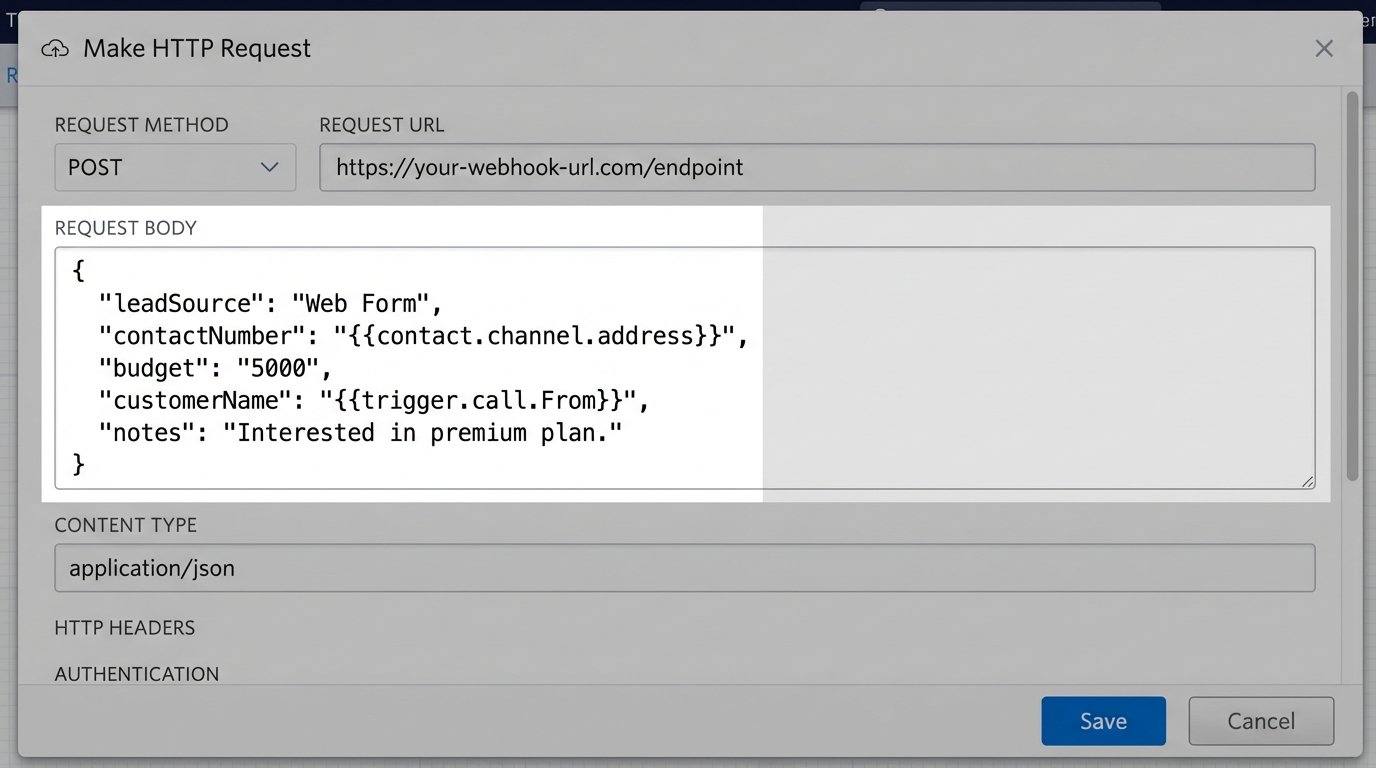
Constructing the JSON Payload
The CRM expects a specific structure. You must construct a JSON body that maps Twilio’s variables to the fields in your CRM. The variables look like `{{widgets.WIDGET_NAME.inbound.Body}}`.
{

  "leadSource": "WhatsApp Bot",

  "contactNumber": "{{contact.channel.address}}",

  "budget": "{{widgets.ask_budget.inbound.Body}}",

  "propertyType": "{{widgets.ask_property_type.inbound.Body}}",

  "timeline": "{{widgets.ask_timeline.inbound.Body}}",

  "hasAgent": "{{widgets.ask_agent.inbound.Body}}"

}
A mistake here means the data is lost or, worse, inserted incorrectly. Double-check your CRM’s API documentation for the exact field names. Get it wrong, and you’ll be debugging failed API calls at midnight.
Reality Check: Timeouts and Error States
People get distracted. They will start a conversation and then disappear for hours. Each “Send & Wait for Reply” widget has a timeout setting. If the user doesn’t respond within that window, the flow will drop down the “No Reply” path. You need to handle this state gracefully.
A good pattern is to send one follow-up message like, “Are you still there? The session will expire soon.” If they still don’t reply, terminate the flow. Do not create an infinite loop of reminder messages. That’s how you get your number blocked.
The “Split Based On…” widget also has a “No Condition Matches” path. This is your default case for when a user types something completely unexpected. Route this to a message that re-states the question and options. After two failed attempts, route them to a human or end the chat. A bot that can’t understand is more frustrating than no bot at all.
This entire process is like building a dam with a series of smaller gates. The main flow of water is the happy path, but you must build spillways for overflows and unexpected blockages, or the whole structure collapses under pressure.
The 24-Hour Rule and Message Templates
WhatsApp aggressively protects its users from spam. Once a user initiates a conversation, you have a 24-hour “session window” to reply with free-form messages. After that window closes, you cannot send another free-form message to re-engage them. The conversation must be re-initiated by the user.
The only way to contact a user after 24 hours is with a pre-approved Message Template (often called an HSM). These are transactional messages you must submit to Meta for approval. Examples include “Your appointment is confirmed” or “We have an update on your property search. Reply YES to continue.”
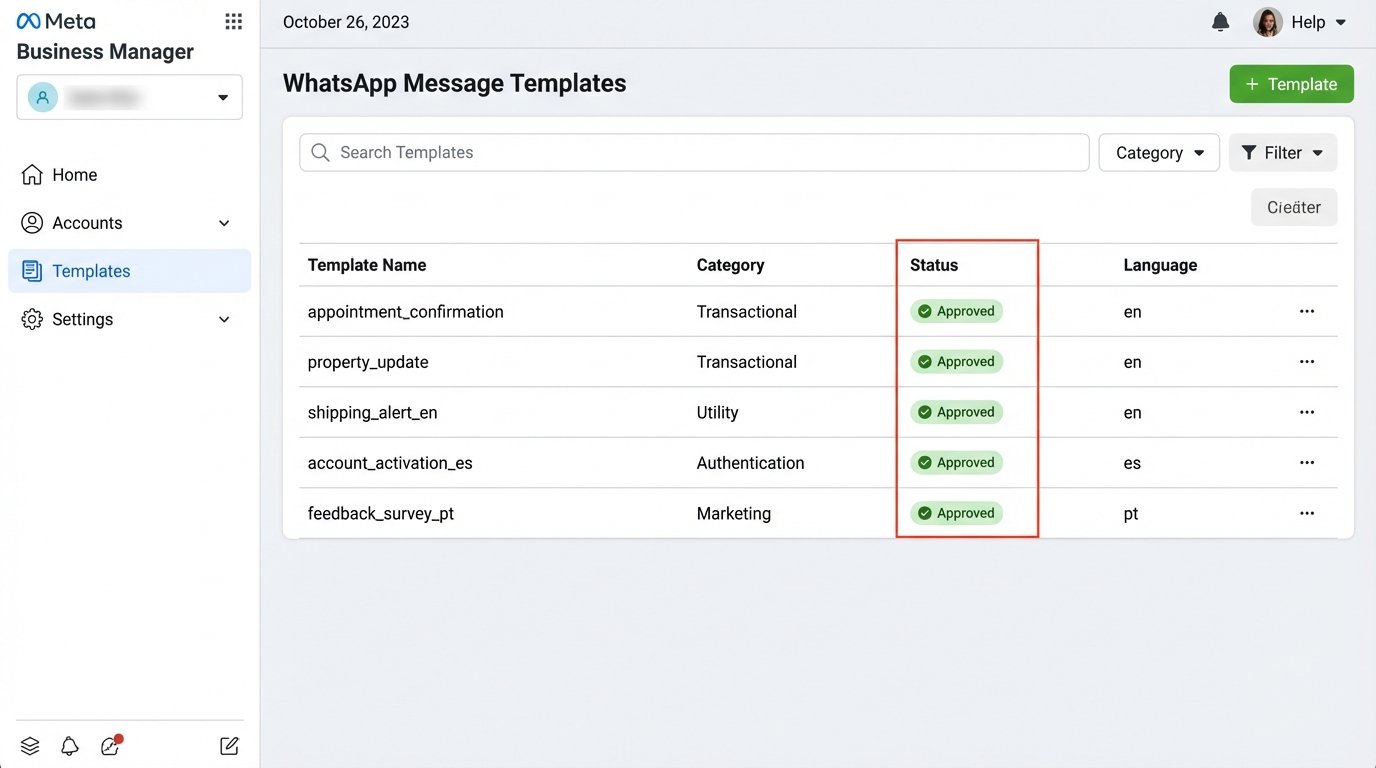
These templates are not for marketing. They have strict rules about content and will be rejected if they sound like a sales pitch. Using them costs more per message than a standard session message. This is the compliance fence you must operate within. Ignoring it will get your API access suspended.
This bot architecture is a filter, not a salesperson. It automates the repetitive, low-value task of initial lead qualification. It saves your high-cost sales team from wasting hours on leads who can’t afford your properties or were just casually browsing. It forces structure onto a chaotic lead source and hands over a clean, pre-qualified data packet. That is its only job.