
Forget the consumer-grade party tricks. Querying the weather or playing music is not productivity. A voice assistant in a professional context is an audio-based terminal, an endpoint for triggering automated workflows. The objective is not convenience. It is to offload the repetitive, low-value tasks that clog your schedule, specifically data entry and information retrieval while you are physically occupied, like driving between properties.
Most realtors who try this fail because they treat the device like a magic box. They expect it to natively understand the difference between a lead and a contact, or an appraisal and an inspection. It does not. You have to build the logic bridges between your voice commands and the systems you actually use, like your CRM and calendar. Without this backend plumbing, you just own a very talkative paperweight.
Prerequisites: The Non-Negotiable Foundation
Before you even unbox a device, you need a sanity check on your existing data hygiene. A voice assistant pulling from a chaotic digital workspace will only amplify that chaos. If your contacts list is a mess of duplicates and your calendar is not the single source of truth for your appointments, stop right here. Fix your data structure first.
- Centralized Calendar: Your entire schedule, from showings to closings to personal appointments, must live in one single, cloud-accessible calendar. Google Calendar or Outlook 365 are the standard. Local, non-synced calendars are a complete non-starter.
- Structured Contacts: Every contact in your database needs to be clean. This means full names, a primary phone number, and an email address. The voice assistant’s parser is primitive. It will choke on entries like “Jim – Buyer” or notes stuffed into the name field.
- Familiarity with IFTTT or Zapier: These are the digital duct tape that will hold this system together. You do not need to be a developer, but you must understand the concept of a trigger and an action. If these platforms are foreign to you, your potential is severely capped.
- A Real CRM with an API: If your “CRM” is a spreadsheet, this entire process is dead on arrival. You need a system like Follow Up Boss, LionDesk, or Top Producer that exposes an API. This is the entry point for injecting data from other systems.
Step 1: Gutting the Default Settings and Forcing Data Sync
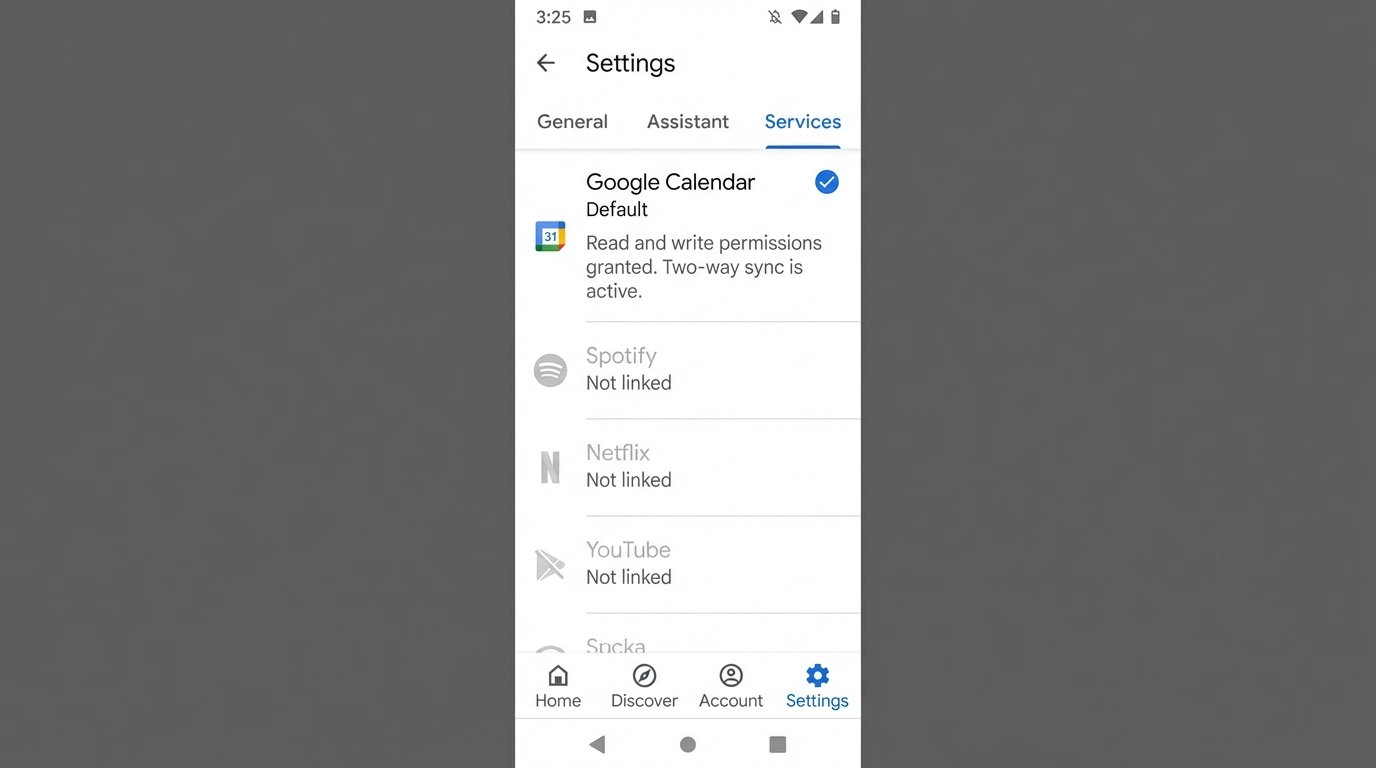
Stock voice assistant settings are designed for casual home use. You need to strip them down and reconfigure them for business. The first battle is forcing a reliable, two-way sync between the assistant and your core Google or Microsoft account. This is more than just logging in. It involves checking permissions and sync frequencies.
For Google Assistant, navigate into the Google Home app, go to Settings, and then to the “Services” tab. Explicitly link your primary calendar and set it as the default. Do the same for contacts. For Alexa, this process is in the Alexa app under Settings > Calendar & Email. Authenticate your account and ensure the permissions grant read and write access. Many setups fail here because users grant read-only access, which prevents the assistant from creating new events.
Test the connection immediately. Do not assume it works.
- Add a test event on your phone’s calendar: “Test Appointment at 4 PM.”
- Ask the voice assistant: “What’s on my calendar today?”
- The assistant must read back the “Test Appointment.”
- Now, use the assistant: “Add an event, Test from Voice, for 5 PM today.”
- Check your phone. The “Test from Voice” event must appear within seconds.
A lag of more than a minute indicates a sync problem that will only get worse under load.
Step 2: Engineering Custom Routines for High-Frequency Tasks
Routines are simple, trigger-based scripts that execute a sequence of actions. They are the gateway to actual productivity. The goal is to bundle multiple commands into a single, memorable voice trigger. A common and effective routine for a realtor is a “Morning Briefing” or “End of Day” sequence.
Example: The “Morning Commute” Routine
This routine is designed to be triggered as you are starting your car. The trigger phrase could be, “Hey Google, start my workday.”
- Trigger: Voice Command – “Start my workday.”
- Action 1: Read today’s calendar events. This pulls every appointment, giving you a mental map of the day ahead.
- Action 2: Report travel time to your first appointment. It pulls the location from the first calendar event and calculates the current traffic.
- Action 3: Read reminders. This is where you store your critical follow-up tasks. “Remind me to call John Smith about the inspection report.”
- Action 4 (Advanced): Trigger a webhook via IFTTT or Zapier to your CRM. This could log your start time or pull a list of hot leads, which the assistant then reads aloud.
Building this requires you to map out the exact sequence in the Alexa or Google Home app. The interface is straightforward, but the logic is rigid. You cannot add conditional if-then statements. The routine executes linearly, top to bottom. If one step fails, it may halt the entire sequence without giving you an error message. It’s a dumb process executor, not a smart agent.
Step 3: Bridging Voice Commands to Your CRM
This is where the real power lies. A voice assistant on its own cannot “add a note to a client.” It has no concept of your CRM. You have to build a communication channel, typically using a middleware service like Zapier to act as a translator. The voice assistant talks to Zapier, and Zapier talks to your CRM’s API.
The flow is as follows: Voice Command -> IFTTT/Zapier Applet -> Webhook -> CRM API.
Let’s architect a common use case: adding a note to a client file after a call.
- Create a “Zap” in Zapier. The trigger will be “Webhooks by Zapier” with the “Catch Hook” event. Zapier will generate a unique URL. This URL is your target.
- Create an IFTTT Applet. The “If This” trigger will be the Google Assistant or Alexa service. You will use the “Say a phrase with a text ingredient” option. Your phrase could be, “Add note for $” where the dollar sign is a variable for the client’s name.
- Configure the “Then That” action in IFTTT. The action is “Webhooks” with the “Make a web request” option. You will paste the Zapier webhook URL here.
- Construct the Payload. In the body of the web request, you will send a JSON payload. This is a structured text format that Zapier and your CRM will understand. You need to map the voice command’s text ingredients to this payload.
Trying to send unstructured data through this pipeline is like shoving a firehose through a needle. It will fail. The data must be structured as a key-value pair format, like JSON, for the receiving API to parse it correctly. Without this structure, the CRM endpoint will reject the request outright.
Example Webhook Payload
When you say, “Alexa, trigger add note for Jane Doe, she loved the kitchen but is concerned about the roof,” IFTTT needs to send a structured request to your Zapier webhook URL. You configure the body of that request to look like this:
{

  "client_name": "{{TextField}}",

  "note_content": "{{TextField2}}"

}
In Zapier, you then configure the action step to search for the client “Jane Doe” in your CRM. Once the client is found, you add the content of “note_content” as a new note on her record. This mapping is the critical piece of engineering that makes the system function.

Step 4: Voice-Triggering Property Information Lookups
Driving to a showing and need a quick refresher on the property details? A properly configured voice assistant can pull this directly from your MLS data source, assuming you have a way to query it programmatically. This is an advanced technique and may require a developer’s help if your MLS provider has a clunky or non-existent API.
The architecture is similar to the CRM integration but points to a different data source.
- Data Source: You need a database or even a well-structured Google Sheet containing key property information: address, price, square footage, bed/bath count, and a link to the full listing.
- Query Mechanism: A simple script (e.g., Google Apps Script for a Google Sheet, or a serverless function) that can accept an address as an input and return the corresponding data.
- Voice Trigger: An IFTTT or Zapier applet, like “Get details for $,” where “$” is the property address.
- Response: The webhook calls your script, which looks up the address. The script then returns the key data, which is passed back to the voice assistant to be read aloud.
The main failure point here is the voice assistant’s speech-to-text engine mangling the street address. “123 Main Street” can easily become “1 to 3 Maine Street.” Your lookup script needs to have some fuzzy matching logic built-in or the query will constantly fail, returning a “property not found” error that is both frustrating and useless when you are minutes from the curb.
Step 5: Implementing Validation and Failure Alerts
A silent failure is the most dangerous kind of failure in an automation workflow. Did your voice command to add a note actually work? Or did it get lost somewhere between IFTTT and your CRM? You need a confirmation loop.
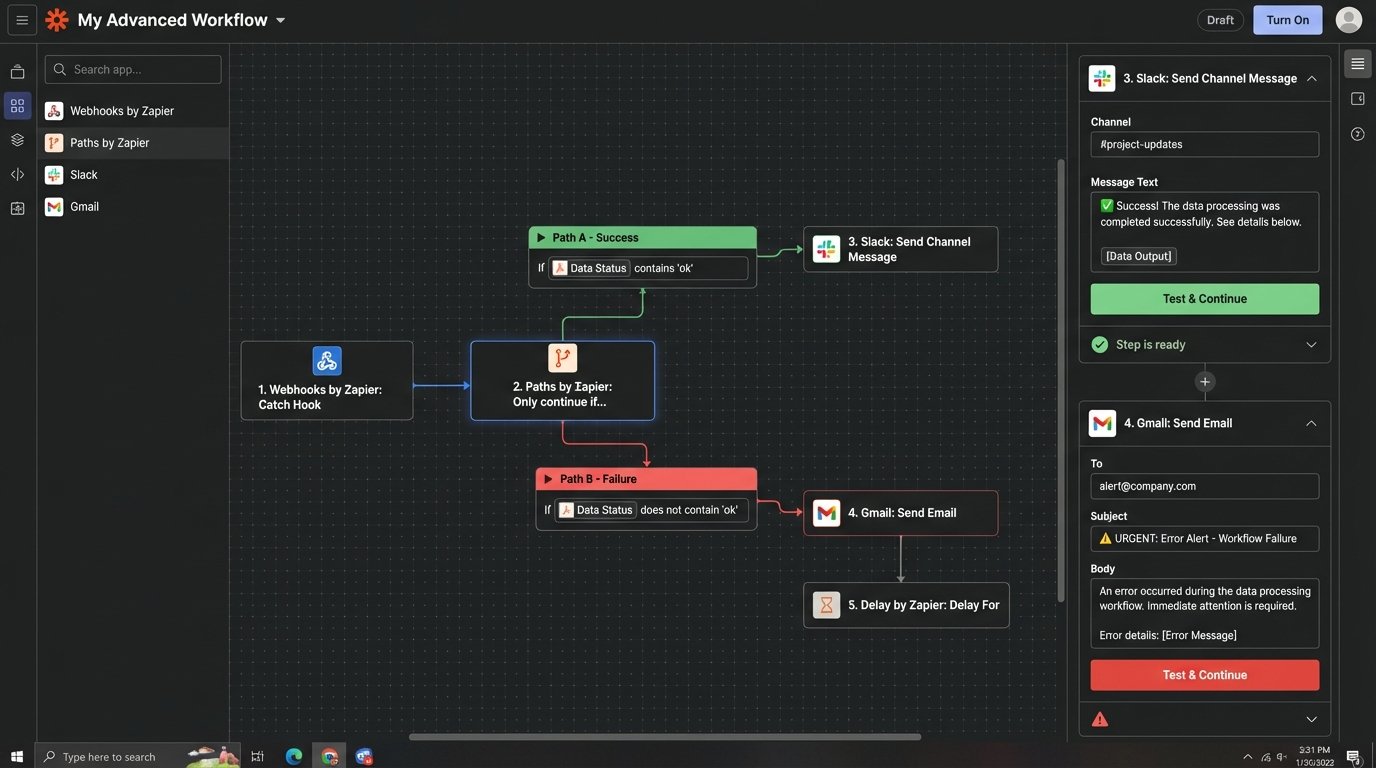
The simplest method is to add another step to your Zapier workflow. After the step that successfully adds the note to your CRM, add a final action that sends you a notification. This could be a push notification via Pushbullet, a direct message in Slack, or even a simple email. The notification should contain confirmation of the action performed, like “Note successfully added for client: Jane Doe.”
Handling Errors
What happens when the CRM is down or the client name was not found? Zapier’s “Paths” feature allows you to build basic conditional logic. You can create one path for a successful action and another path for a failure. The failure path should trigger a different, more urgent notification: “ALERT: Failed to add note for client: Jane Doe. Reason: Client not found.”
This closes the loop. It transforms the system from a “fire and forget” tool into a reliable one. Without this feedback mechanism, you will never trust the automation enough to depend on it, defeating the entire purpose.
Security and Data Privacy Considerations
You are piping sensitive client information through multiple third-party services. IFTTT, Zapier, Amazon, and Google are all processing this data. While they have security measures in place, you are expanding your attack surface. It is critical to use unique, complex passwords for each service and enable two-factor authentication everywhere.
Be acutely aware of what you are saying. Do not read financial information or other non-public personal data into a voice command. Treat the microphone as if it is always recording and sending data to a third party for processing, because that is exactly what is happening. This system is for operational productivity, not for handling highly sensitive closing documents. Know the limitations and operate within them.