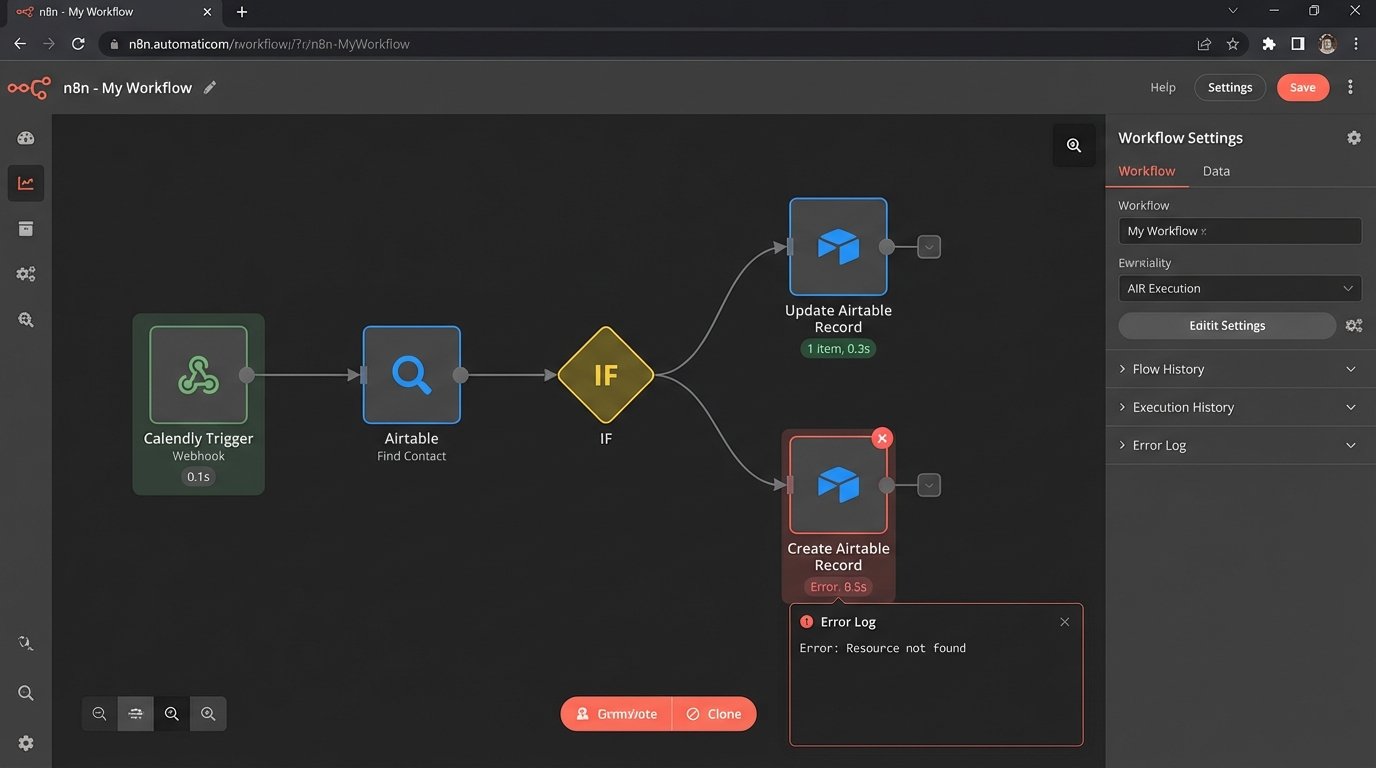
I wasted half of yesterday debugging a flow because a new lead booked a meeting through Calendly, but the record in our Airtable base never got updated with the event URI. The webhook fired, the n8n workflow ran, but the final HTTP request to patch the Airtable record failed silently. Turns out, the logic I wrote to find the existing contact was too strict and it was trying to create a duplicate instead of updating, which failed because of a unique email constraint. A classic case of solving one problem and creating another.
This whole mess is part of a bigger system to keep our client data synchronized without manual copy-pasting. The goal is simple: when a client interacts with us via email or calendar, our CRM should know about it. The execution, of course, is a tangled web of webhooks, API calls, and ugly data transformation logic. We use n8n for the orchestration because self-hosting gives us control and its HTTP Request node is more flexible than Make’s or Zapier’s equivalent. Airtable is the CRM here, which works well enough for our scale, but its API rate limits are something you always have to keep in the back of your mind.
Handling Calendar Events with Webhooks
The first piece of this puzzle is capturing new meetings. Most calendar booking tools, like Calendly or SavvyCal, support webhooks. You give them a URL, and they post a JSON payload to it whenever an event is created, rescheduled, or canceled. This is way better than polling their API every five minutes, which is inefficient and a quick way to get your API key suspended.
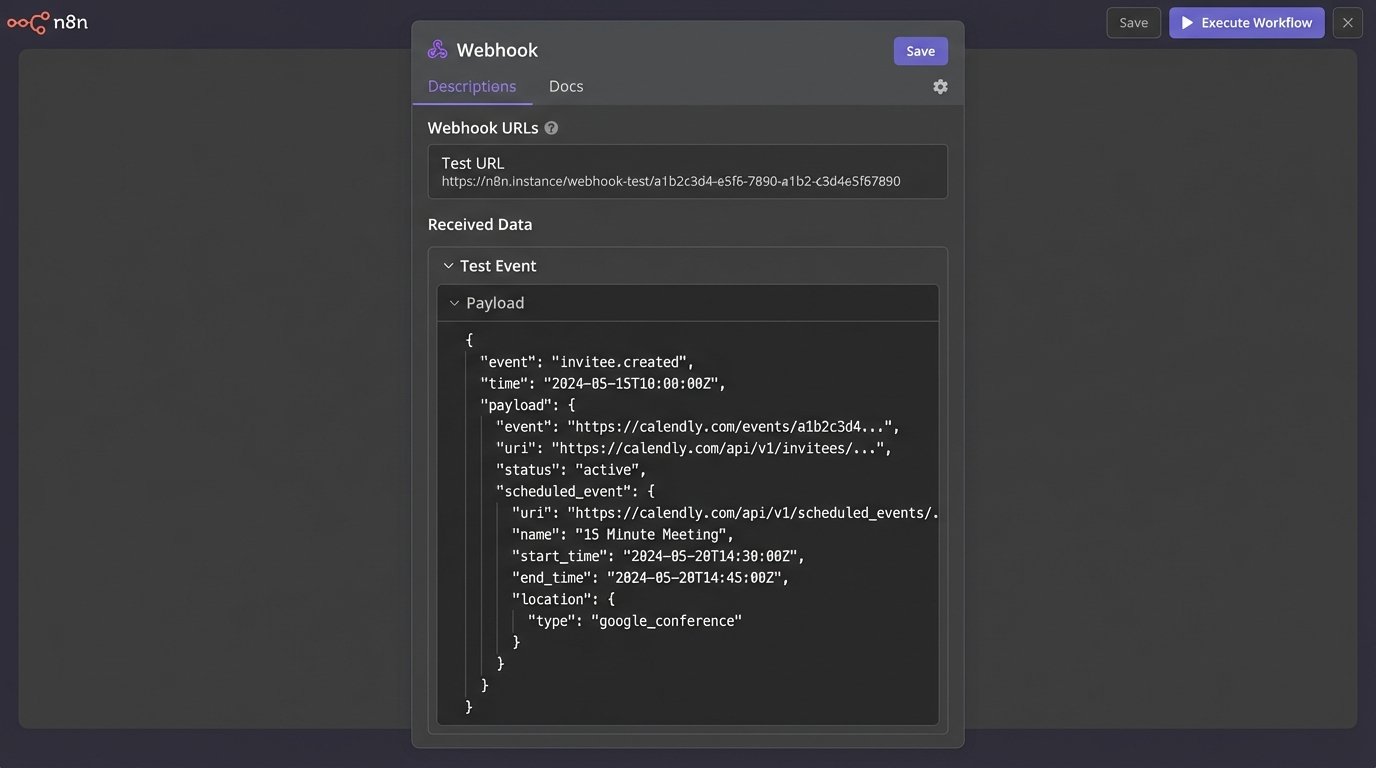
In n8n, you start with a Webhook node. It generates a unique URL that you paste into your Calendly settings. The moment you do that, Calendly will send a test payload, and the node will automatically map out the JSON structure for you. This is the entry point for the entire client onboarding automation.
Parsing the Payload and Finding the Contact
The raw JSON from Calendly is verbose. It contains everything from the event UUID to tracking information. We only care about a few key fields: the event status, start time, event URI, and the invitee’s details (name and email). The first step in the workflow is to pull these out.
Here’s a simplified look at the JSON payload for an `invitee.created` event:
{
  "event": "invitee.created",
  "payload": {
    "uri": "https://api.calendly.com/scheduled_events/GBGBD-example-UUID",
    "email": "new.lead@example.com",
    "name": "New Lead",
    "status": "active",
    "scheduled_event": {
      "start_time": "2023-10-27T14:00:00.000000Z",
      "end_time": "2023-10-27T14:30:00.000000Z",
      "uri": "https://api.calendly.com/scheduled_events/GBGBD-example-UUID"
    }
  }
}
Once the data arrives, the next node is an Airtable node set to “Search Records.” We use the `invitee.email` from the payload to find a matching record in our Contacts table. The search formula is simple: `{Email} = ‘{{$json[“payload”][“email”]}}’`. This is where my original workflow had a problem. If the search returned nothing, the flow would stop or, in my poorly designed V1, error out. The correct way is to use an IF node. If a record is found, proceed to the “Update” branch. If not, go to the “Create” branch.
Updating or Creating the CRM Record
In the “Update” branch, we use another Airtable node. We take the Record ID from the previous search step and feed it into the “Record ID” field. Then, we map the Calendly data to the corresponding Airtable fields. For example, we put the `scheduled_event.uri` into a “Last Meeting Link” field and `scheduled_event.start_time` into a “Last Meeting Time” field. This gives our team immediate context on the client’s last interaction.
In the “Create” branch, we use an Airtable “Create Record” node. We map `name` and `email` from the payload. This ensures that even if a brand new person books a meeting, they get added to the CRM automatically. This dual-path logic is fundamental. Without it, you get either duplicates or missed updates.
Synchronizing Client Emails
Calendar events are one thing, but the real volume of client communication happens over email. Manually logging every important email thread is a productivity black hole. The solution here is less direct than a webhook but still achievable. We use the Gmail node in n8n, though a similar approach works with the Microsoft Outlook node.
The trigger is a “Gmail Trigger” node set to watch for new emails. The key is to not ingest every single email. That would be insane. You have to filter aggressively. We use a dedicated label in Gmail called “CRM-Sync.” When a sales rep finishes a significant conversation, they apply that label. The n8n trigger is configured to only fire for emails with that specific label.
Extracting Data and Handling Threads
Email data is messy. The trigger node gives you the subject, sender, recipients, and the email body in both plain text and HTML. We mostly care about the sender (`from.email`), the date, and the subject line. The body is often too complex to parse reliably, so we usually just link back to the Gmail thread URI.
First, we search Airtable for the sender’s email address, just like the Calendly workflow. If a contact exists, we update their record. We have a “Last Email Contact” date field and a “Last Email Subject” text field. For the update, we use a Code node with a bit of JavaScript to format the data before sending it to Airtable.
// n8n Code Node
// Prepares the data for the Airtable Update node.

const emailData = $input.item.json;
const contactRecordId = $input.item.json.airtableRecordId; // Assumes this was found in a previous step

const updatePayload = {
  "id": contactRecordId,
  "fields": {
    "Last Email Contact": emailData.date,
    "Last Email Subject": emailData.subject,
    "Notes": "New email thread logged. See Gmail for details."
  }
};

return { json: updatePayload };
This snippet builds the exact JSON object the Airtable API expects for a `PATCH` request. The Code node gives you full control over this transformation, which is much cleaner than trying to build a complex JSON object using the standard “Set” node.
The Ugly but Necessary Parts
This system isn’t perfect. It’s a custom-built machine with failure points. Error handling is the most important part. Every HTTP request or API call node in n8n has an “Error Workflow” output. You need to connect these to a separate flow that sends a notification to a Slack channel or logs the error. Otherwise, things will fail silently, and you won’t know until a client complains.
Another issue is rate limiting. If you suddenly label 200 emails at once, you might hit the Airtable API’s limit of 5 requests per second. n8n has a built-in “Split in Batches” node that helps manage this. We configure it to process the records in chunks of 5 with a one-second pause between each batch. It slows down the processing but prevents the entire workflow from failing due to a 429 error.
This setup requires maintenance. If Calendly changes its webhook payload structure or Airtable deprecates an API endpoint, parts of the workflow will break. You have to monitor it. But the alternative is hours of manual data entry each week, which is a far worse fate. This hacky, multi-part automation saves us that time, even if it requires a kick now and then.